GPU / Disk / Memory Guidelines
Lab servers are shared resources. One person's program can use not only GPU, but also CPU, memory, disk space, and disk I/O.
Most commands in this page can also be found in Common Linux Commands.
1. Checklist Before Running
Before starting training or any long-running task, run:
whoami
hostname
pwd
Confirm which account, server, and directory you are using.
Check GPU:
nvidia-smi
Check logged-in users:
who
Check system memory:
free -h
Check current directory size:
du -sh .
Check overall disk usage:
df -h
If these commands show that the server is already busy, do not immediately start another heavy job. First make sure it will not affect others.
2. GPU Guidelines
GPU is the most visible shared resource, and also the easiest one to conflict over. Before training, always check:
nvidia-smi
Pay attention to GPU-Util and Memory-Usage.
If a GPU already has another lab member's process on it, do not take it directly. Even if GPU-Util is temporarily 0%, the job may simply be loading data, validating, saving a checkpoint, or waiting for the next training step.
If the server has multiple GPUs, you can choose which one to use. For example, use only GPU 0:
CUDA_VISIBLE_DEVICES=0 python train.py
Use only GPU 1:
CUDA_VISIBLE_DEVICES=1 python train.py
Do not start with multiple GPUs right away
Multiple GPUs do not automatically make every program faster. Many codebases need DataParallel, DistributedDataParallel, or other multi-GPU logic.
I recommend first running a small experiment on one GPU. After confirming memory usage, speed, and logs are normal, then consider multiple GPUs.
3. CPU and System Memory
GPU training also uses CPU and system memory.
Check memory:
free -h
I like using htop:
htop
Check processes under your own account:
ps -u "$USER" -o pid,%cpu,%mem,rss,etime,cmd --sort=-%mem | head
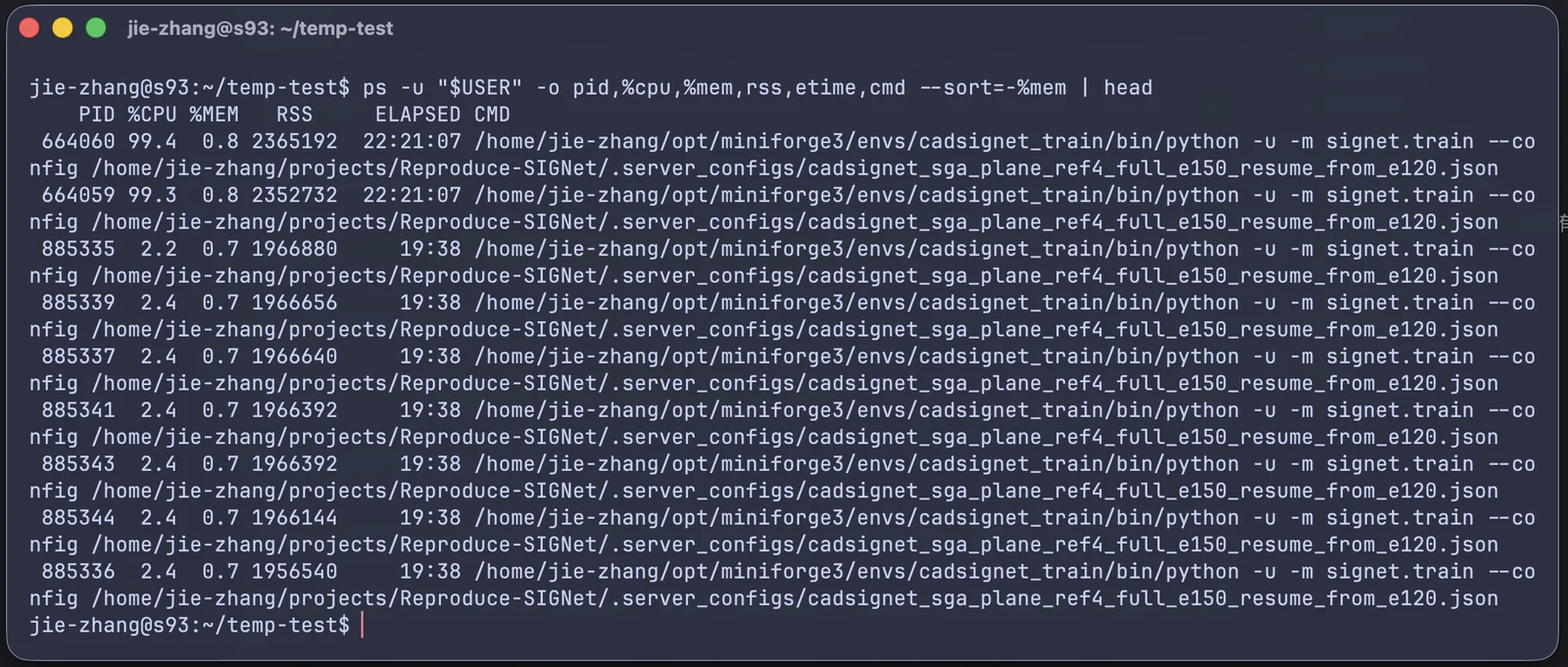
When using frameworks such as PyTorch or TensorFlow, do not casually set num_workers very high. For example:
num_workers=32
This may use a lot of CPU and memory. Start from 2, 4, or 8, then adjust after observing speed and memory usage.
4. Disk Space
Training outputs, checkpoints, datasets, and similar files can easily fill the disk. When the disk is full, experiments may fail, and in worse cases other users may also be affected.
Check overall filesystem space:
df -h
Check current directory size:
du -sh .
Check the size of each item in the current directory, sorted by size:
du -sh -- ./* ./.??* 2>/dev/null | sort -hr
Find files larger than 1 GB under the current directory:
find . -type f -size +1G -exec ls -lh {} \;
Common things to clean regularly include old checkpoints and temporary files.
Do not use this if you are not sure where you are:
rm -rf *
5. Many Small Files
Many small files can slow down the filesystem. For example, if you put hundreds of thousands of images, log fragments, or intermediate outputs in one directory, reading, deleting, backing up, and syncing can all become slow.
A better approach is to split them by category, date, or ID range. You will notice that almost all large datasets are organized this way.
For example, this is not recommended:
outputs/
  000000.png
  000001.png
  ...
  999999.png
This is better:
outputs/
  000/
    000000.png
    000001.png
  001/
    001000.png
    001001.png
6. Disk I/O
Disk I/O means pressure from reading and writing disk. Even if the GPU is not full, the server can become slow if someone is extracting, copying, deleting, or reading lots of small files.
If you need to do large compression, extraction, or copying, try to avoid times when other lab members are training. Before operating, check the data size:
du -sh dataset/
If you are transferring many small files from your own computer to the server, it is better to compress them first and transfer one archive. See File Transfer.
7. After an Experiment Finishes
When an experiment finishes, do not just close your local computer. I recommend doing a few checks.
Check tmux sessions:
tmux ls
Exit sessions you no longer need:
exit
Check whether you still have running processes:
ps -u "$USER" -o pid,%cpu,%mem,etime,cmd
Check whether GPU has been released:
nvidia-smi
For important results, transfer them back to your own computer or another approved long-term storage location. Do not treat the server disk as your only backup.
8. Recommended Habits
Get into the habit of checking nvidia-smi before every training run. Also confirm pwd before starting each experiment.
Save logs for every experiment. Otherwise, a failed run may leave you with no clue.
Split or compress large numbers of small files.
Do not keep important results only on the server.