File Transfer
This page explains how to transfer files between your own computer and the lab server.
If you are only editing code, config files, or a few small text logs, VS Code Remote SSH is enough.
If you need to transfer datasets, model weights, experiment results, many images, or large archives, it is better to use dedicated tools such as scp, rsync, or sftp.
1. First Make Sure SSH Works
File transfer can also happen through SSH. So before transferring files, first check that your computer can connect to the server:
ssh vis-server
If you have not configured the vis-server alias yet, read the ~/.ssh/config part in SSH Public and Private Keys.
After that is set up, using the alias is very convenient:
ssh vis-server
scp local-file.txt vis-server:~/
rsync -av local-folder/ vis-server:~/local-folder/
sftp vis-server
2. Which Tool Should You Use?
Simply put, use scp or VS Code for small files and folders. Use rsync for large files or large directories, especially when transfers may be interrupted. sftp is more like an interactive file manager, useful when you want to look around directories while transferring files.
Check the direction first
Be clear about the direction: are you uploading from your computer to the server, or downloading from the server to your computer?
3. How Paths Are Written
Transfer commands usually contain both a local path and a server path.
The current local directory can be written as:
./
A server path usually looks like:
vis-server:/home/taro-yamada/projects/
If you are using your home directory, you can shorten it:
vis-server:~/projects/
Here, vis-server: is the host alias in your SSH config, and the part after the colon is the path on the server.
For example:
scp result.txt vis-server:~/projects/
This copies result.txt from your current local directory to ~/projects/ on the server.
Windows PowerShell can use a similar style. The current local directory can be written as .\, and a full command may look like:
scp .\result.txt vis-server:~/projects/
4. Copy Files with scp
scp is good for transferring one file or a small folder.
Upload from your computer to the server
scp local-file.txt vis-server:~/projects/
Example:
scp config.yaml vis-server:~/projects/my-experiment/
Download from the server to your computer
scp vis-server:~/projects/my-experiment/result.txt ./
The final ./ means "download to the current local directory".
Copy a folder
To copy a folder, add -r:
scp -r local-folder vis-server:~/projects/
Download a folder from the server:
scp -r vis-server:~/projects/my-experiment/results ./
The good thing about scp is that it is simple. The downside is that if the transfer breaks, you usually need to start again. For large directories, it is also not great at transferring only changed files.
5. Sync Directories with rsync
rsync is the tool I recommend more for everyday transfers. It compares the source and target directories, then transfers only new or changed parts. For large directories, repeated syncs, or interrupted transfers, it is usually better than scp.
macOS and Linux usually have rsync available. Windows PowerShell usually does not include rsync by default. On Windows, you can use WSL, Git Bash, Cygwin, or use scp, sftp, WinSCP, and similar tools instead.
Sync from your computer to the server
rsync -av --progress local-folder/ vis-server:~/projects/local-folder/
Sync from the server to your computer
rsync -av --progress vis-server:~/projects/my-experiment/results/ ./results/
Common options:
| Option | Meaning |
|---|---|
-a |
Archive mode. Recursively copies files and tries to preserve time, permissions, and related metadata. |
-v |
Shows more details. |
--progress |
Shows transfer progress. |
--partial |
Keeps partially transferred files, making it easier to continue next time. |
--dry-run |
Preview only. It does not actually copy or delete files. |
Recommended form:
rsync -av --progress --partial local-folder/ vis-server:~/projects/local-folder/
Pay Attention to the Trailing Slash
In rsync, whether the source directory ends with / matters a lot.
rsync -av local-folder/ vis-server:~/projects/local-folder/
With /, this copies the contents inside local-folder.
rsync -av local-folder vis-server:~/projects/
Without /, this copies the whole local-folder directory under ~/projects/.
If you are not sure whether the command is right, add --dry-run first:
rsync -av --dry-run local-folder/ vis-server:~/projects/local-folder/
After confirming the output looks correct, remove --dry-run.
Be careful with --delete
rsync --delete deletes files in the target directory that do not exist in the source directory. It is useful, but also dangerous.
If you get the direction wrong, you may delete important files in the target directory. When you are just getting started, I do not recommend using --delete.
6. Use sftp for Interactive Transfers
sftp is useful when you are not quite sure where the file is and want an interactive interface to look around while transferring.
Connect to the server:
sftp vis-server
After entering, you will see:
sftp>
Common commands:
| Command | What it does |
|---|---|
pwd |
Show the current server directory. |
lpwd |
Show the current local directory. |
ls |
List files on the server. |
lls |
List local files. |
cd path |
Change the server directory. |
lcd path |
Change the local directory. |
put file.txt |
Upload a file from your computer to the server. |
get file.txt |
Download a file from the server to your computer. |
put -r folder |
Upload a folder. |
get -r folder |
Download a folder. |
bye |
Exit. |
Example:
sftp> cd projects/my-experiment
sftp> lcd Downloads
sftp> put config.yaml
sftp> get result.txt
sftp> bye
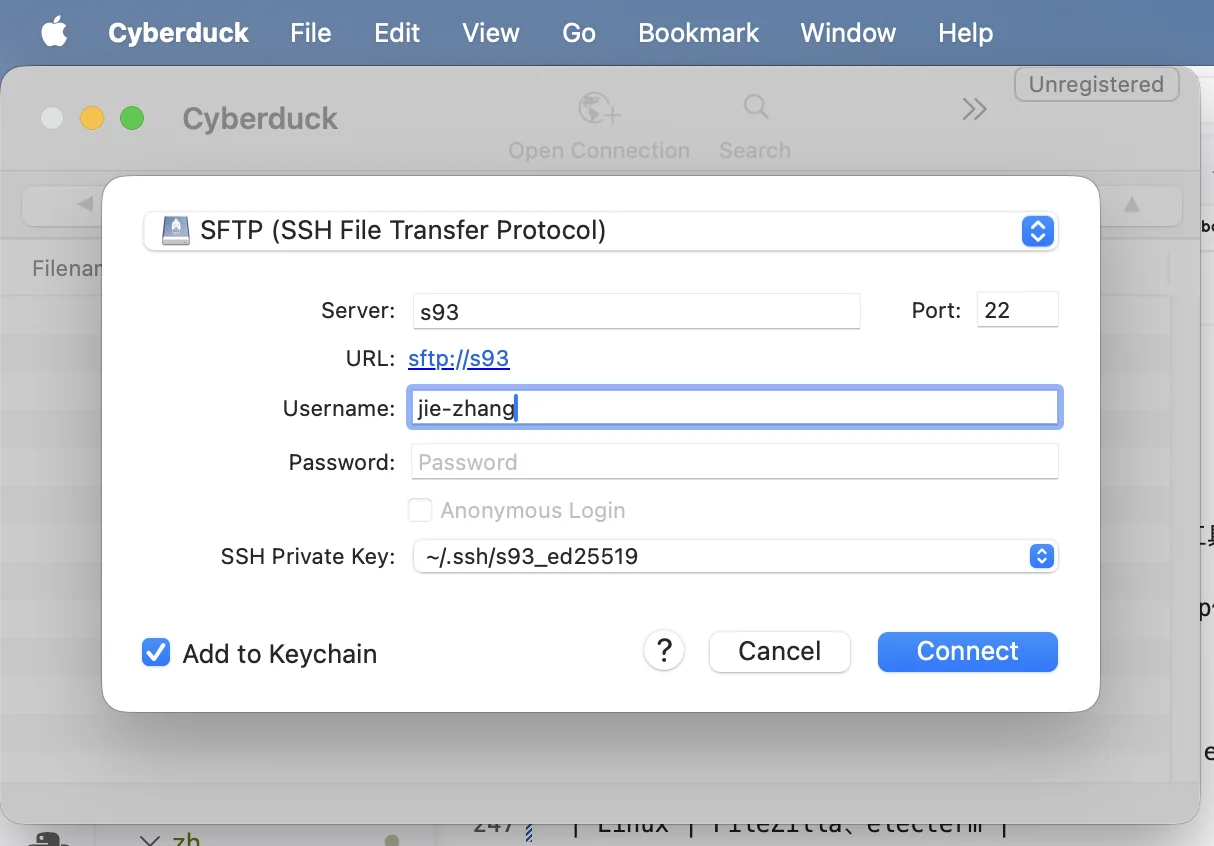
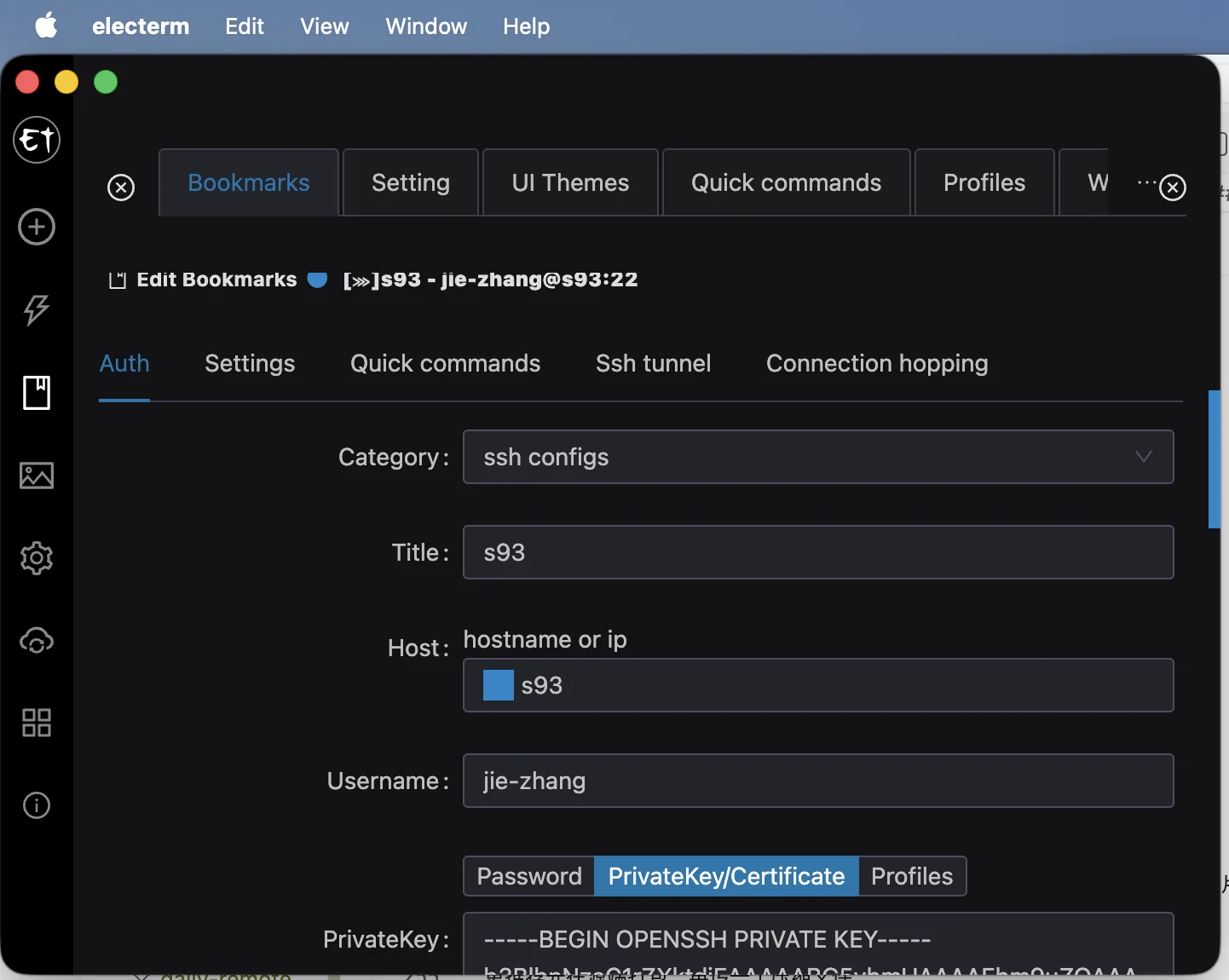
7. Graphical Tools
If you do not want to type commands every time, you can also use a graphical tool that supports SFTP.
Most tools are similar. What we need is SSH/SFTP transfer support.
| System | Tools |
|---|---|
| Windows | Cyberduck, FileZilla, MobaXterm, electerm |
| macOS | Cyberduck, FileZilla, electerm |
| Linux | FileZilla, electerm |
8. Compress Many Small Files First
Transferring many small files is usually slow, because each file has its own metadata. For example, tens of thousands of images, many tiny logs, or lots of small cache files can take a long time if transferred as a directory.
It is usually better to compress them on the source side first, then transfer one archive.
Compress on the server
tar -czf results.tar.gz results/
Download it to your computer:
scp vis-server:~/projects/my-experiment/results.tar.gz ./
Compress locally and upload
tar -czf dataset-small.tar.gz dataset-small/
scp dataset-small.tar.gz vis-server:~/datasets/
Extract
tar -xzf results.tar.gz
Compression also uses resources
Compressing a large directory on the server uses CPU and disk I/O. On a shared server, do not repeatedly compress very large directories. It is better to check the directory size first and avoid times when other lab members are heavily using the server.
Check directory size:
du -sh results/
9. Exclude Files You Do Not Need
When syncing a project, many files do not need to be transferred, such as Python caches, Git directories, temporary logs, model checkpoints, and wandb outputs.
Use --exclude:
rsync -av --progress \
  --exclude ".git/" \
  --exclude "__pycache__/" \
  --exclude "*.pyc" \
  local-folder/ vis-server:~/projects/local-folder/
If you have many exclude rules, write them into a file such as rsync-exclude.txt:
.git/
__pycache__/
*.pyc
wandb/
runs/
checkpoints/
Then run:
rsync -av --progress --exclude-from rsync-exclude.txt local-folder/ vis-server:~/projects/local-folder/
10. Check After Transfer
After a transfer finishes, it is a good idea to confirm that the files really arrived at the target location.
Check file size:
ls -lh file.tar.gz
Check directory size:
du -sh results/
For very important large files, you can compare checksums.
On the server:
sha256sum results.tar.gz
On your computer:
sha256sum results.tar.gz
If both sides show the same hash, the file content is the same.
macOS users
macOS may not have sha256sum by default. You can use:
shasum -a 256 results.tar.gz
Windows PowerShell users
In Windows PowerShell, use:
Get-FileHash .\results.tar.gz -Algorithm SHA256
11. Recommended Workflow
If you are not sure what to use, use a graphical SFTP tool.
For small files, VS Code Remote SSH is fine.
For many small files, compress them first. For directory sync, use rsync.
References
- University of Sheffield HPC: Transferring files
- Stanford Sherlock: Data transfer
- UC Davis HPC: Data Transfer
- Stony Brook Research Computing: File Transfer with rsync, scp, sftp
- Princeton Research Computing: Data Transfer
- Kyoto University KUDPC: SSH File Transfer
- Science Tokyo TSUBAME4.0 FAQ: About file transfer