What SSH Is and How to Connect
Before using the VIS Hiroshima lab's Ubuntu servers, you need to know two things:
- How to connect to a server with SSH;
- How to use basic Linux/UNIX commands.
This page first explains what SSH does, then walks through one basic server login. Later pages will cover SSH keys, VS Code Remote SSH, file transfer, and running long experiments.
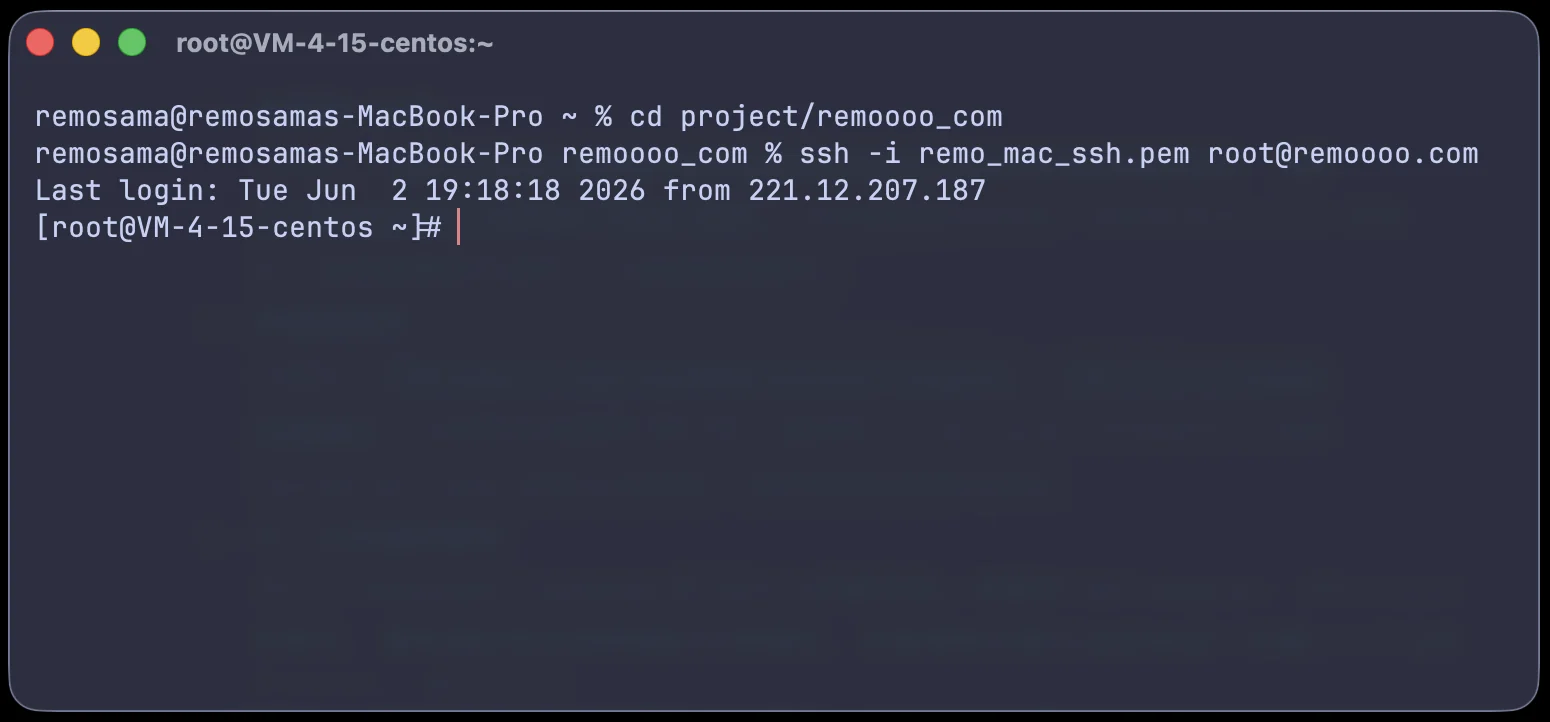
1. Basic Idea of SSH
SSH stands for Secure Shell. It is a network protocol for logging in to another computer remotely, and it creates an encrypted connection between your computer and the remote server.
In our case, the lab's Ubuntu machine is the server. SSH connects your own computer to that server. After connecting, you can browse files on the server, create and edit code, run programs, use the server's GPU resources, download experiment results, and so on.
After you log in, you are still typing commands on your own computer, but those commands are actually running on the remote server. SSH encrypts the communication, including usernames, passwords, commands, and transferred data, so it is very useful for research and server work.
2. Do You Need to Install SSH?
Depending on your operating system, you may already have an SSH client ready to use.
Mac usually comes with the command-line SSH tool already installed. You do not need extra setup. I recommend using Ghostty, iTerm2, or the built-in Terminal.
Open a terminal and run:
ssh -V
If you see SSH version information, SSH is ready to use.
Windows usually comes with OpenSSH Client already installed. I recommend using PowerShell.
Open PowerShell and run:
ssh -V
If you see SSH command information, the SSH client is installed.
If Windows says it cannot find the ssh command, check "Optional Features" and make sure OpenSSH Client is installed.
Most Linux distributions already come with OpenSSH Client installed. I recommend using the default terminal, or Ghostty if you prefer it.
Open a terminal and run:
ssh -V
If you see SSH version information, SSH is ready to use.
If your system says it cannot find the ssh command, install it with your distribution's package manager. On Ubuntu / Debian:
sudo apt update
sudo apt install openssh-client
On Fedora:
sudo dnf install openssh-clients
On Arch Linux:
sudo pacman -S openssh
3. What You Need Before Connecting
Before connecting to a lab server, you need to get your username from Hirakiuchi-san, the lab server IP address or hostname, and the password for that account.
Server accounts are usually provided by Hirakiuchi-san or another server administrator.
Hirakiuchi-san may send you something like this:
Blackwell:10.30.XXX.XXX
アカウント名:taro-yamada
パスワード:(管理者から通知される一時パスワード)
Here, 10.30.XXX.XXX is the server's IP address inside the lab network.
4. Connect from the Lab Network
If your computer is already connected to the lab's wired or wireless network, you can try connecting to the server directly with SSH.
The basic SSH command looks like this:
ssh username@server-address
For example:
ssh taro-yamada@10.30.XXX.XXX
The first time you connect to a server, SSH may show a message like this:
The authenticity of host '10.30.XXX.XXX' can't be established.
Are you sure you want to continue connecting (yes/no/[fingerprint])?
This means your computer has never connected to this server before, so it has not saved the server's identity yet. Type yes and press Enter.
After that, the server information will be saved in your local known_hosts file. The next time you connect to the same server, this message usually will not appear again.
5. Enter the Password
After you run the SSH command, the terminal will ask for the password:
taro-yamada@10.30.XXX.XXX's password:
Type the server password provided by Hirakiuchi-san, then press Enter.
Note: nothing appears while you type the password
When you type a password in the command line, the screen will not show stars, dots, or the password characters. This is normal.
Just type the password and press Enter. If you think you typed it wrong, press
Ctrl + Cto cancel the current connection, then run the SSH command again.
6. How to Check That Login Worked
Here is a full example of an SSH login:
user@DESKTOP-EXAMPLE C:\Users\user>ssh taro-yamada@10.30.XXX.XXX
taro-yamada@10.30.XXX.XXX's password:
Welcome to Ubuntu 24.04.3 LTS (GNU/Linux 6.8.0-85-generic x86_64)

 * Documentation:  https://help.ubuntu.com
 * Management:     https://landscape.canonical.com
 * Support:        https://ubuntu.com/pro

 System information as of 2026年  6月  7日 日曜日 22:47:44 JST

  System load:           2.31
  Usage of /:            11.4% of 13.97TB
  Memory usage:          13%
  Swap usage:            1%
  Temperature:           47.0 C
  Processes:             618
  Users logged in:       4
  IPv4 address for eno1: 10.30.XXX.XXX
  IPv6 address for eno1: 2001:2f8:xxx:xxx::xxxx

Expanded Security Maintenance for Applicationsが無効化されています。

112のアップデートはすぐに適用されます。
これらの更新の63は、標準のセキュリティ更新です。

Last login: Sun Jun  7 20:40:49 2026 from 2001:2f8:xxx:xxx::xxxx
From this point on, the commands you type will run on the lab server, not on your own computer.
For example, pwd shows your current directory.
ls shows the files in the current directory.
whoami shows the username you are currently logged in as.
hostname shows the current server's hostname.
nvidia-smi shows the current GPU usage.
7. Reset the Password Immediately
If you logged in with a temporary initial password provided by the administrator, change it to a password only you know right after your first successful login.
Run this command in the server terminal:
passwd
The server will ask for your current password, then the new password twice:
現在のパスワード:
新しいパスワード:
新しいパスワードを再入力してください:
passwd: パスワードは正しく更新されました
Just like SSH login, nothing appears on the screen while you type the password. Do not use your student ID, birthday, name, simple numbers, or a password reused from another website or university account.
If the password change fails, or if you already forgot the current password, contact Hirakiuchi-san or another server administrator.
8. How to Leave the Server
Type exit in the command line and press Enter to close the current SSH session.
Closing the terminal window usually also disconnects you, but it is better to get into the habit of using exit.
If you run a long program directly in a normal SSH window, the program may stop when the SSH connection closes. Long-running experiments should use tmux. See tmux and Running Experiments for details.
9. Common Connection Errors
Connection timed out
If you see:
ssh: connect to host 10.30.XXX.XXX port 22: Connection timed out
it means your computer cannot reach the server. Common reasons include not being on the lab network, being at home or on another off-campus network, or typing the IP address incorrectly.
First check whether you are on the lab network. If you are off campus, see Off-campus Access.
Permission denied, please try again.
If you see:
Permission denied, please try again.
it usually means the username or password is wrong. If you forgot your password, just contact Hirakiuchi-san.
Could not resolve hostname
If you see:
ssh: Could not resolve hostname ...
it usually means the server address is wrong. If you are using an IP address, check whether any numbers or dots are missing.
10. Basic Security Notes
Please follow these rules:
- Do not tell other people your password;
- Do not publish your password anywhere;
- Do not use
sudoif you do not understand what the command does. In fact, you cannot use it on the server anyway, because Hirakiuchi-san did not give you that permission. :)
Later, you can set up SSH key login. With an SSH key, you usually do not need to type the server password every time, and it is nicer for long-term use. See SSH Public and Private Keys for the steps.
11. What You Should Know After This Page
After finishing this page, you should be able to:
- Explain what SSH is for;
- Understand the difference between your local computer and a remote server;
- Connect to a lab server with
ssh username@server-address; - Leave the server properly with
exit;
The most basic full workflow is:
ssh taro-yamada@10.30.XXX.XXX
After typing the password and logging in:
whoami
hostname
pwd
ls
When you are done:
exit